
Microsoft Clarity for Business: From User Behavior Analysis to Improving Website Sales
The “Buy” button doesn’t respond. You can’t select a delivery city. Product images won’t zoom in. Visitors won’t tell you about these problems — they’ll simply leave and go to a competitor. Microsoft Clarity helps you spot these obstacles by recording how real users interact with your website.
The RegisTeam SEO team analyzed user behavior in Microsoft Clarity across five websites: online stores selling paint, heating equipment, car key-making equipment, and watch winders, as well as a B2B hosting provider. We identified around 100 issues and supported our findings with 90 session recordings. In this article, we’ll explore the most common problems, what we discovered in the recordings, and what we recommended to the website owners.
The most common issues Microsoft Clarity helps identify:
– Poor mobile usability — found on 5 out of 5 websites.
– Product images that don’t zoom in or switch between views — found on 4 out of 5 websites.
– Clicks on elements that appear clickable but don’t respond (dead clicks) — found on 4 out of 5 websites.
– Missing product details, answers to common questions, or customer reviews — found on 4 out of 5 websites.
– Shopping cart and checkout issues — found on 3 out of 5 websites.
What Is Microsoft Clarity and Why Does Your Business Need It?
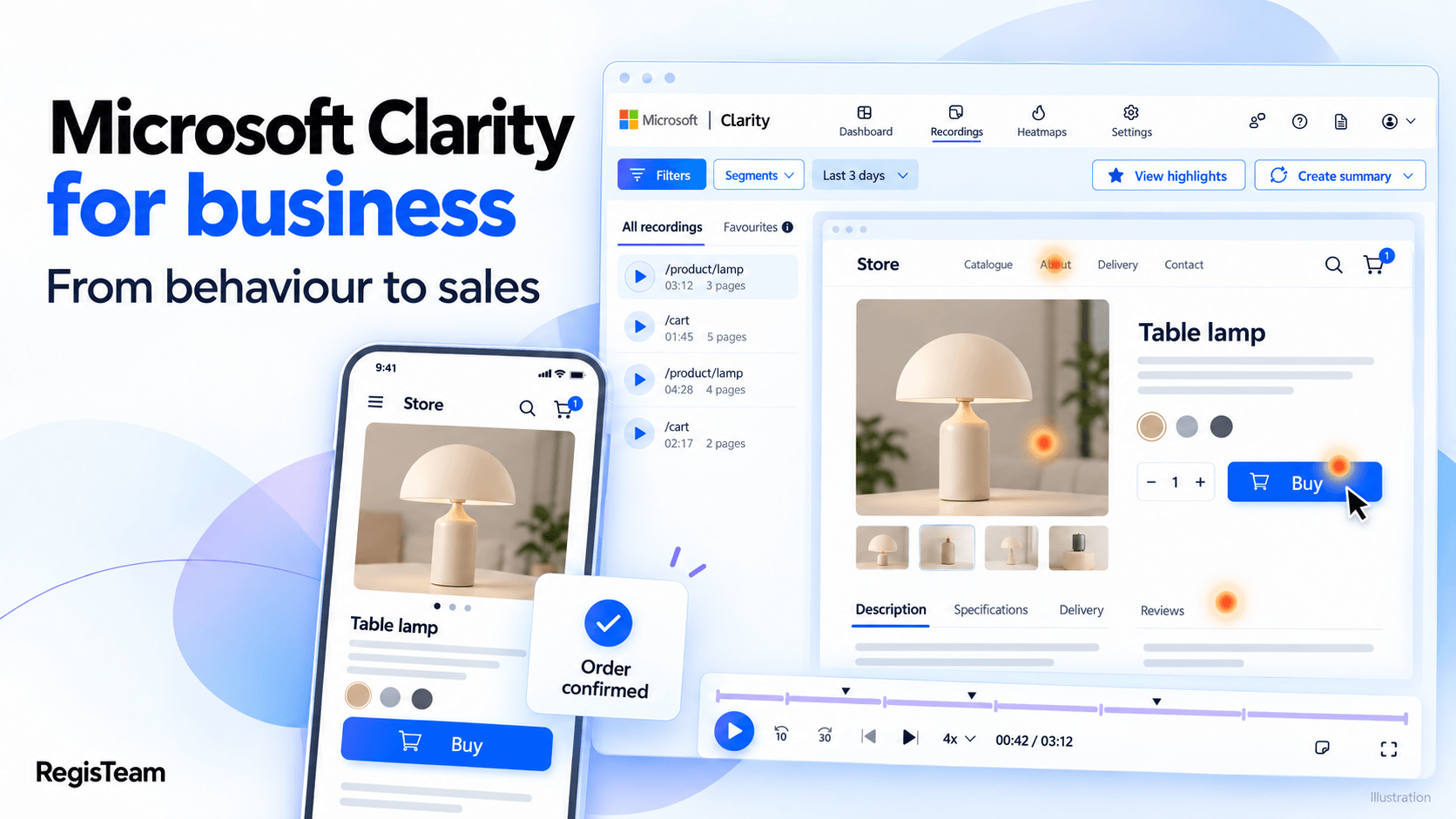
Microsoft Clarity is a free user behavior analytics tool from Microsoft. It records visitor sessions in a format similar to screen recordings, generates click and scroll heatmaps, and automatically flags potential usability issues, such as rage clicks, dead clicks, and quick backs.
Google Analytics tells you “how many?” — how many people visited your website and how many made a purchase. Clarity helps you understand “why?” — why a customer abandoned their cart, didn’t complete a form, or couldn’t find the product information they needed.
For businesses, this means replacing guesswork with real insights. Instead of assuming your website is difficult to use, you can see exactly where users encounter difficulties and why you might be losing orders.
Important for websites with EU visitors: Clarity uses cookies, so its tracking script should only run after visitors have given the required consent. During one of our audits, we found that a session recording of a visitor from Germany had started before they interacted with the cookie consent banner. This is something worth checking before you begin analyzing user behavior.
Which Microsoft Clarity Features Do We Use to Analyze Websites?
In every audit, we use the following Microsoft Clarity tools:
| Feature | What It Shows | How We Use It |
|---|---|---|
| Session Recordings | The sequence of clicks, scrolling, and page navigation | Identify where users encounter obstacles when making a purchase or submitting an inquiry |
| Click Heatmaps | Which elements users click on | Identify popular sections, overlooked buttons, and elements that users mistakenly perceive as interactive |
| Scroll Heatmaps | How far visitors scroll down a page | Check whether users reach product specifications, delivery information, forms, and additional offers |
| Rage Clicks | Repeated rapid clicks in the same area | Detect potential delays, unresponsive buttons, and confusing interface behavior |
| Dead Clicks | Clicks that produce no visible response | Identify unresponsive images, labels, buttons, and other page elements |
| Quick Backs | Users quickly returning to the previous page | Check whether the page users open matches their expectations |
| Filters and Segments | User interactions on specific pages, devices, or from particular traffic sources | Isolate issues affecting mobile users from those occurring on desktop |
| JavaScript Errors | Script errors and the sessions in which they occur | Investigate technical issues affecting search, adding products to the cart, or checkout |
| Smart Events | Specific user actions, including adding items to the cart or submitting forms | Filter session recordings to analyze particular stages of the user journey |
No single signal is conclusive on its own. A rage click could indicate a broken button or simply an impatient user. That’s why we investigate every suspicious interaction: we watch the full session recording, reproduce the user’s actions on the same type of device and browser, and only then confirm whether there’s an actual issue.
What Can Microsoft Clarity Reveal About Your Website?
Clarity gives you three ways to understand how visitors interact with your website:
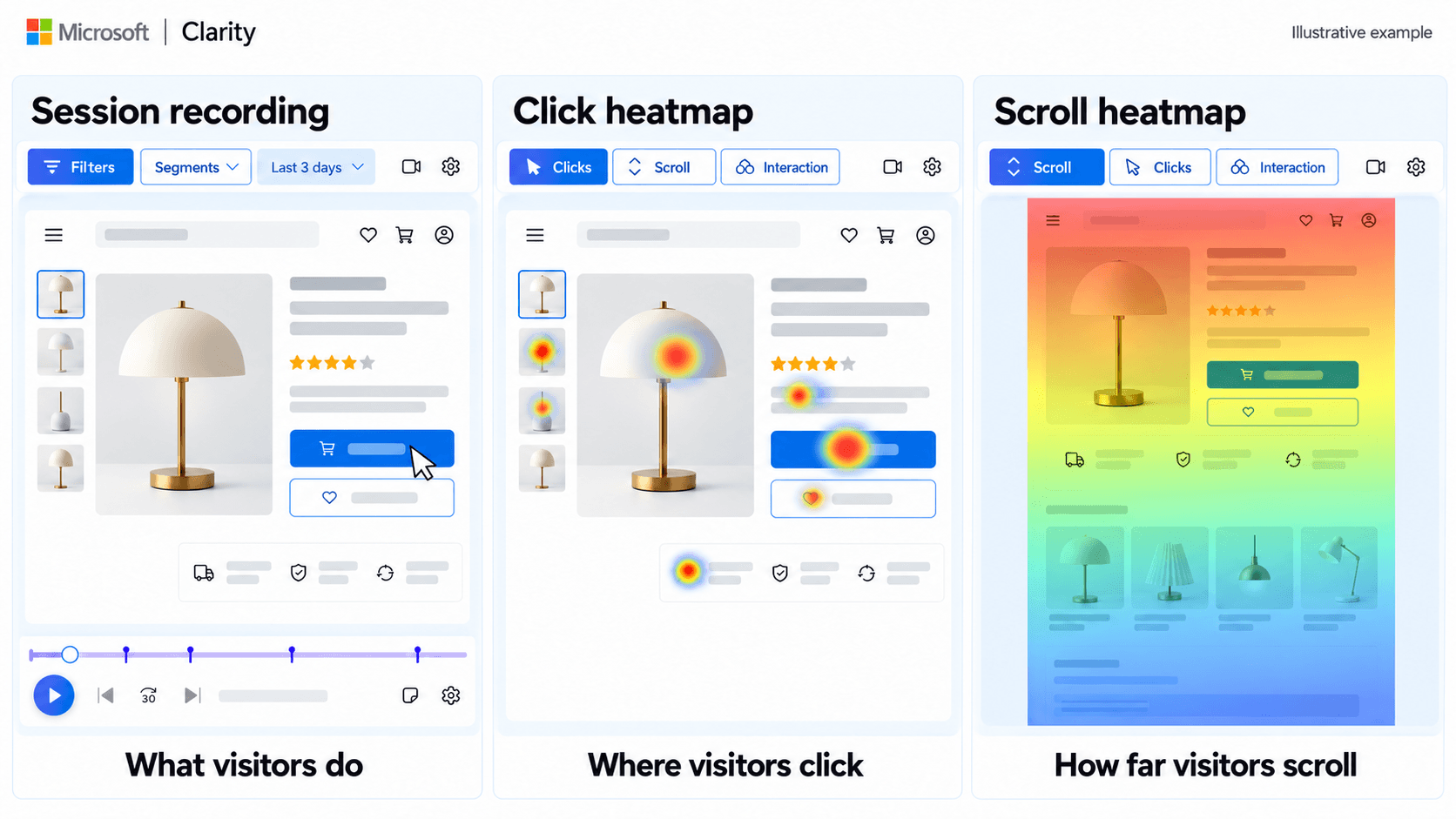
– Session recordings — show what individual visitors do: where they click, where they hesitate, and when they go back to a previous page. This helps identify the exact step where a potential purchase falls through.
– Click heatmaps — show where visitors click across a page. They highlight popular sections and “fake buttons” — elements that look clickable but aren’t.
– Scroll heatmaps — show how far visitors scroll down a page. If shipping information or an order button sits below the point most visitors reach, many of them may never see it.
Filters let you narrow down recordings to specific sessions, such as mobile visits, interactions on a particular page, or sessions with rage clicks or JavaScript errors. These are the sessions we start with when conducting an audit.
Rage Clicks in Microsoft Clarity: Why Do Customers Click "Buy" Multiple Times?
Rage clicks are a series of rapid clicks in the same spot. This often happens when someone clicks a button but gets no visible response.
Here’s what we found in the session recordings:
– At an online store selling car key-making equipment, a logged-in customer placing a large order repeatedly clicked “Add to cart”, while JavaScript errors were also recorded during the session.
– On the same website, the quantity adjustment buttons in the shopping cart didn’t always work, and the quantity automatically reset to 1 after being changed.
– During checkout, a customer repeatedly clicked a shipping option that wasn’t selected on the first attempt, triggering a series of rage clicks.
Problem:
The product isn’t added to the cart on the first attempt, and the customer receives no confirmation. In our example, this happened to a logged-in customer placing a large order.
Recommendation:
Reproduce the issue on the same type of device and browser used in the recording, fix the JavaScript errors, and provide clear feedback after the button is clicked: an updated cart counter, an “Added to cart” message, or a loading indicator on the button.
How to Find This Issue on Your Website:
In Clarity, filter session recordings by Rage clicks and JavaScript errors, then review sessions from product and shopping cart pages.
What Do Clarity Session Recordings Reveal About Shopping Cart and Checkout Issues?
The most costly issues are those that occur when a customer has already decided to buy. A single broken field during checkout can undermine all the effort invested in advertising and SEO.
Here’s what we found in the session recordings:
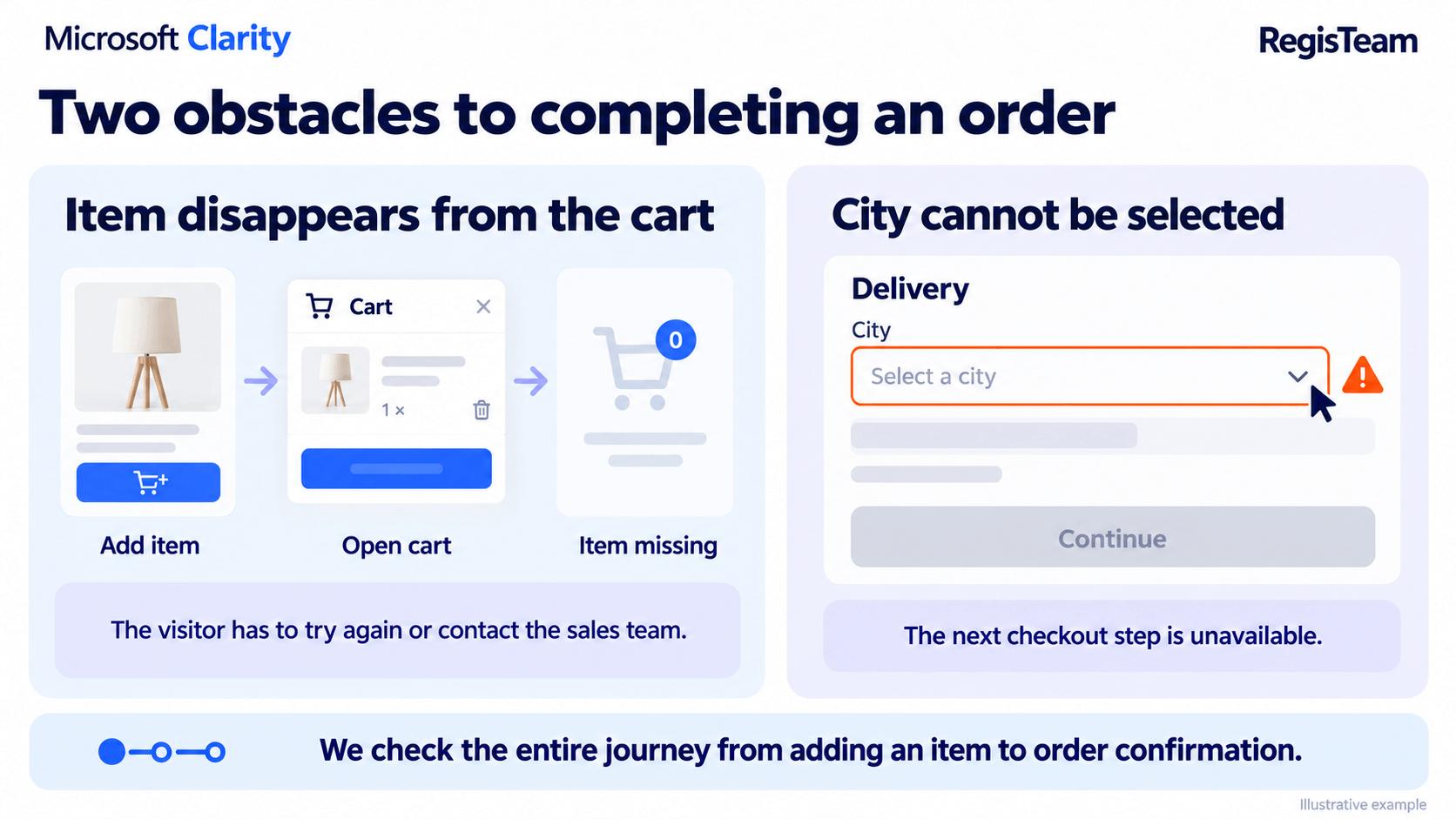
– At an online paint store, a product disappeared from the cart as the customer moved between checkout steps, forcing them to place the order through live chat support.
– On the same website, another customer couldn’t select a delivery city, and based on the recording, the order was never completed.
– After selecting “Legal Entity” and choosing bank transfer as the payment method, a customer hesitated for a long time. The form was almost identical to the one for individual customers, making it unclear why they needed to select a different customer type.
Problem:
The customer is ready to pay, but the website prevents them from completing the order.
Recommendation:
Prioritize testing the entire checkout process, from adding products to the cart to confirming the order. Check that products and quantities are preserved between steps, city autocomplete works correctly, and customer information carries over to the next step. Test the process on mobile devices and across different browsers. For B2B customers, clearly highlight the benefits of registering as a business, such as bank transfer payment options, special pricing, deferred payment terms, and a dedicated account manager.
Dead Clicks in Microsoft Clarity: What Information Is Missing from Your Product Pages?
A dead click happens when a user clicks on something and nothing happens. On product pages, this often occurs when customers try to enlarge an image to get a closer look at a product, but the image isn’t clickable. We found this issue on four out of five websites.
Here’s what we found in the session recordings:
– On a mobile website, a customer repeatedly tapped a product image, but nothing opened, so they left the page.
– Clicking on image thumbnails didn’t always update the main product image.
– A customer spent a long time switching between several primers, looking for product specifications, recommended applications, and compatibility information.
– A customer was close to making a purchase but couldn’t find the information they needed in either the product description or images.
– Customers actively read reviews, but many products had no reviews at all.
Problem:
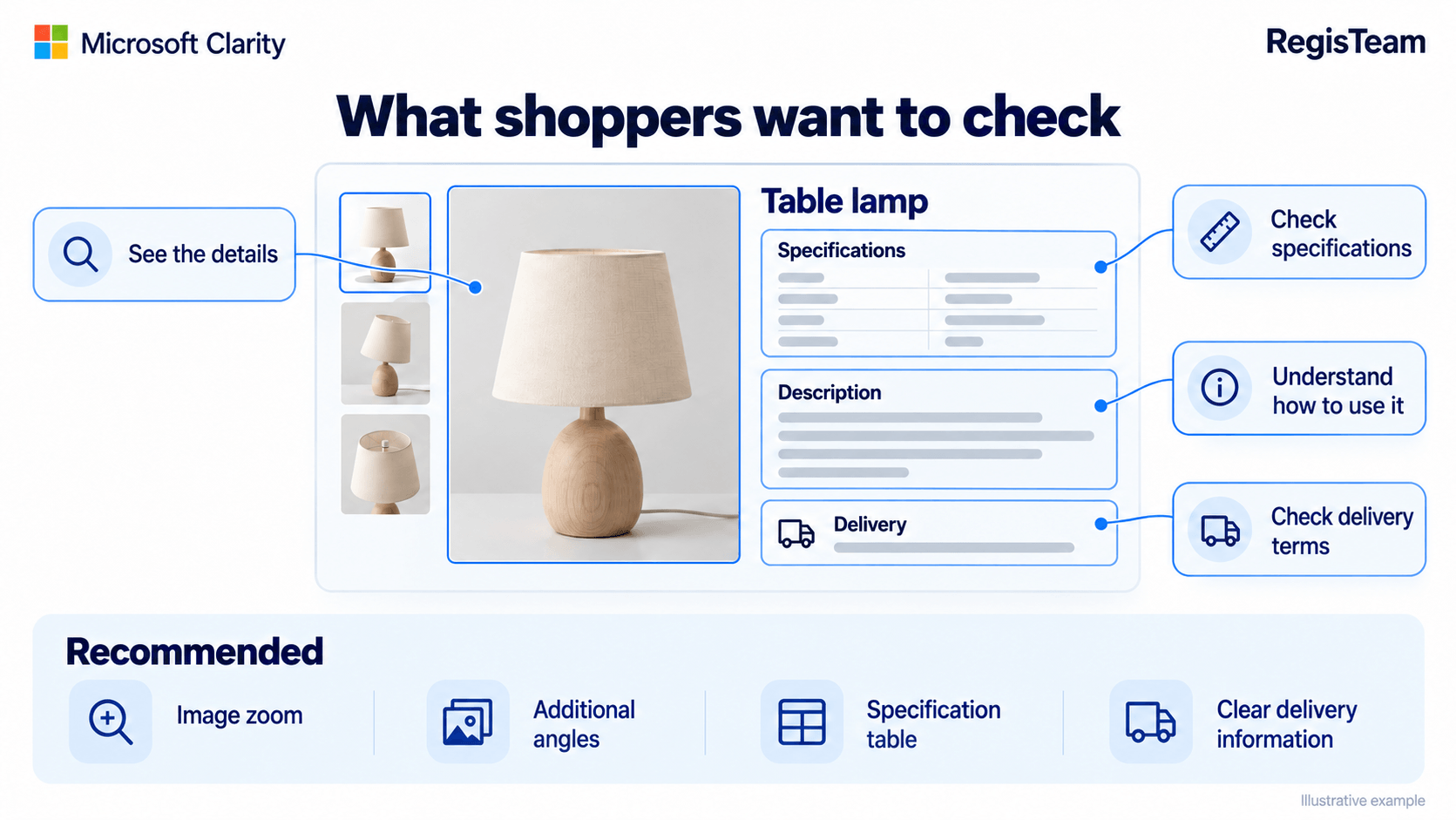
Customers can’t get a closer look at the product or find the specifications they need, so they leave to look for that information on other websites.
Recommendation:
Enable image zoom and swipeable galleries on mobile devices, add more product photos from different angles, and include diagrams showing product dimensions. Move technical specifications into a dedicated tab with a comparison table, and add sections such as “What It’s Suitable For” and “How to Use It,” along with a short FAQ based on real customer questions. Collect customer reviews regularly. They help build trust and can also improve how your products appear in search results.
Is It Clear Which Product Variant Is Selected? An Example from Microsoft Clarity
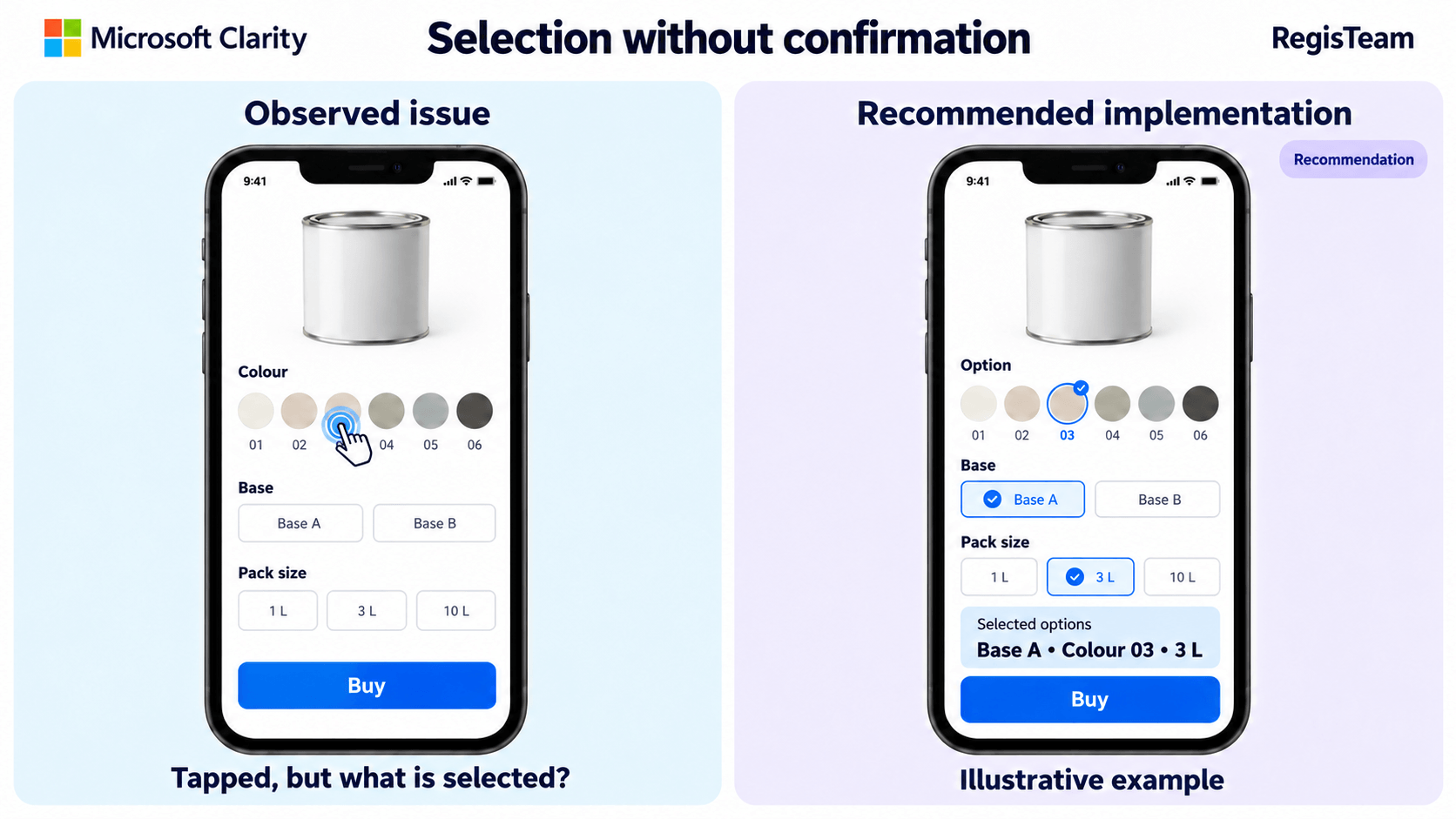
When a product comes in different colors, bases, or package sizes, customers should immediately see which option they’ve selected. Otherwise, they may keep clicking to make sure their selection has been registered.
Here’s what we found in the session recordings:
– At an online paint store, a customer repeatedly switched between paint bases and colors because it wasn’t clear which option was currently selected.
– On the mobile version, tapping a color shade produced no noticeable visual change, leaving the customer unsure whether their selection had been registered.
Problem:
Customers aren’t sure they’re ordering the exact product variant they want, so they put off making a purchase.
Recommendation:
Clearly highlight the selected option with a border or checkmark, immediately display the shade name or number, and show all selected options above the “Buy” button. For example: “Base A • Color 03 • 3 L”.
If different package sizes are grouped on a single product page, the website may miss out on search queries such as “paint … 0.9 L”. For sizes with proven search demand, it’s worth considering separate product pages with their own URLs, title tags, prices, and availability information.
Mobile Usability in Microsoft Clarity: What Makes Your Website Difficult to Use on a Smartphone?
We found mobile usability issues on all five websites. Simply shrinking a desktop layout doesn’t make a website mobile-friendly.
Here’s what we found in the session recordings:
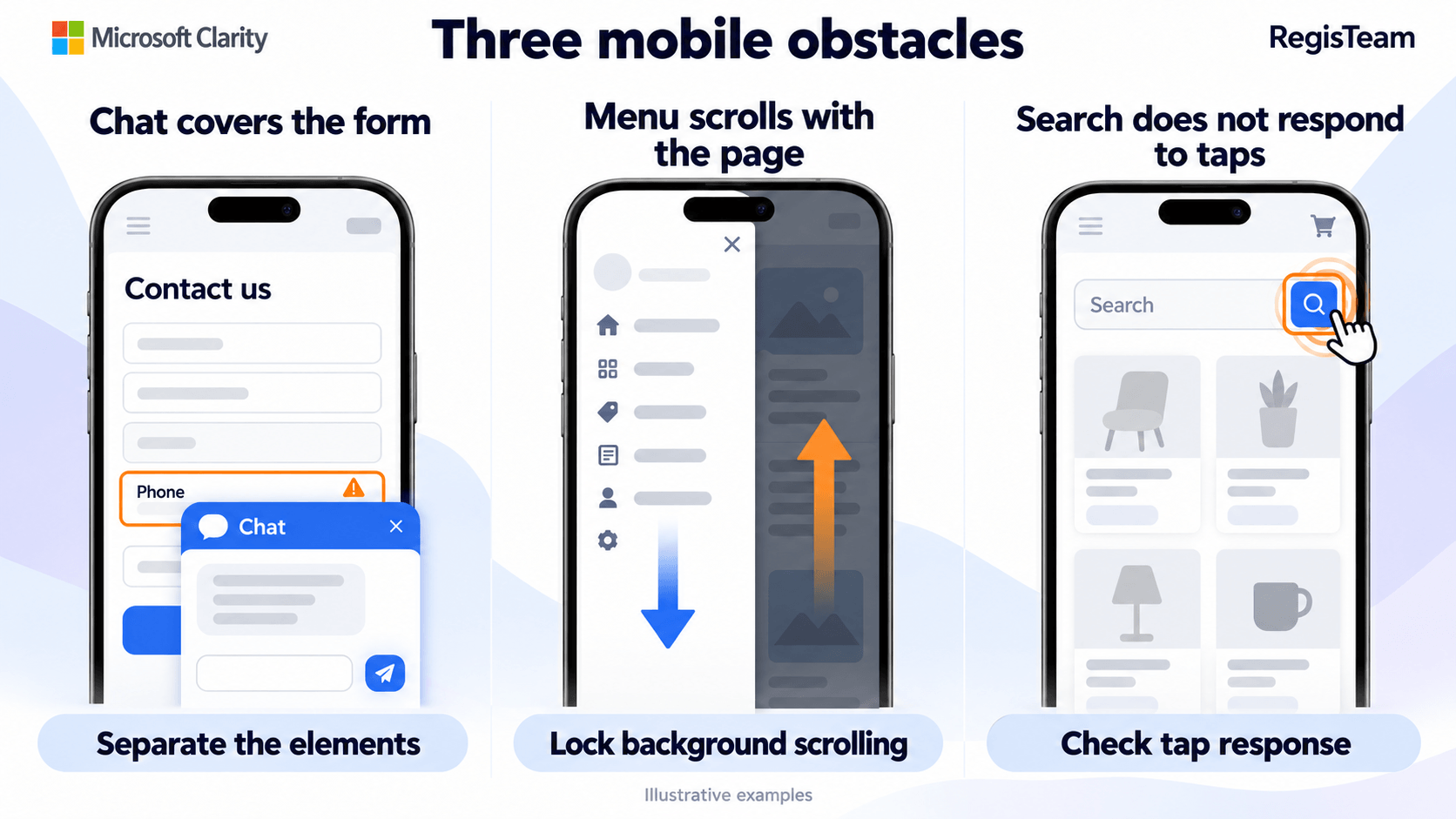
– When users tried to scroll through the menu, the background page scrolled instead.
– The vehicle model search feature was very slow to respond on mobile, causing users to repeatedly tap the same spot.
– The header and bottom navigation bar took up almost half of the screen.
– The cookie consent banner covered a large portion of the initial screen.
– Badges and the customer reviews section overlapped product images, while on tablets, images overlapped form fields.
– On a promotional page, text and images appeared in the wrong order.
Problem:
On a smartphone, users struggle to complete basic tasks, such as opening the menu, finding a product, or filling out a form.
Recommendation:
Focus mobile testing on functionality, not just appearance. Check whether users can open the menu, find a product, select a variant, fill out a form, and close a widget. Prevent the background page from scrolling when the menu is open, reduce the size of the header and bottom navigation bar, and position the chat widget and form fields so they don’t overlap. Test the website on the same devices and screen resolutions shown in Clarity session recordings.
Live Chat in Clarity Session Recordings: Does It Help Customers Get Support?
The session recordings revealed something unexpected: at one online store, customers used live chat not only to ask questions but also to place orders. Live chat had become an additional sales channel, but its potential wasn’t being fully utilized.
Here’s what we found in the session recordings:
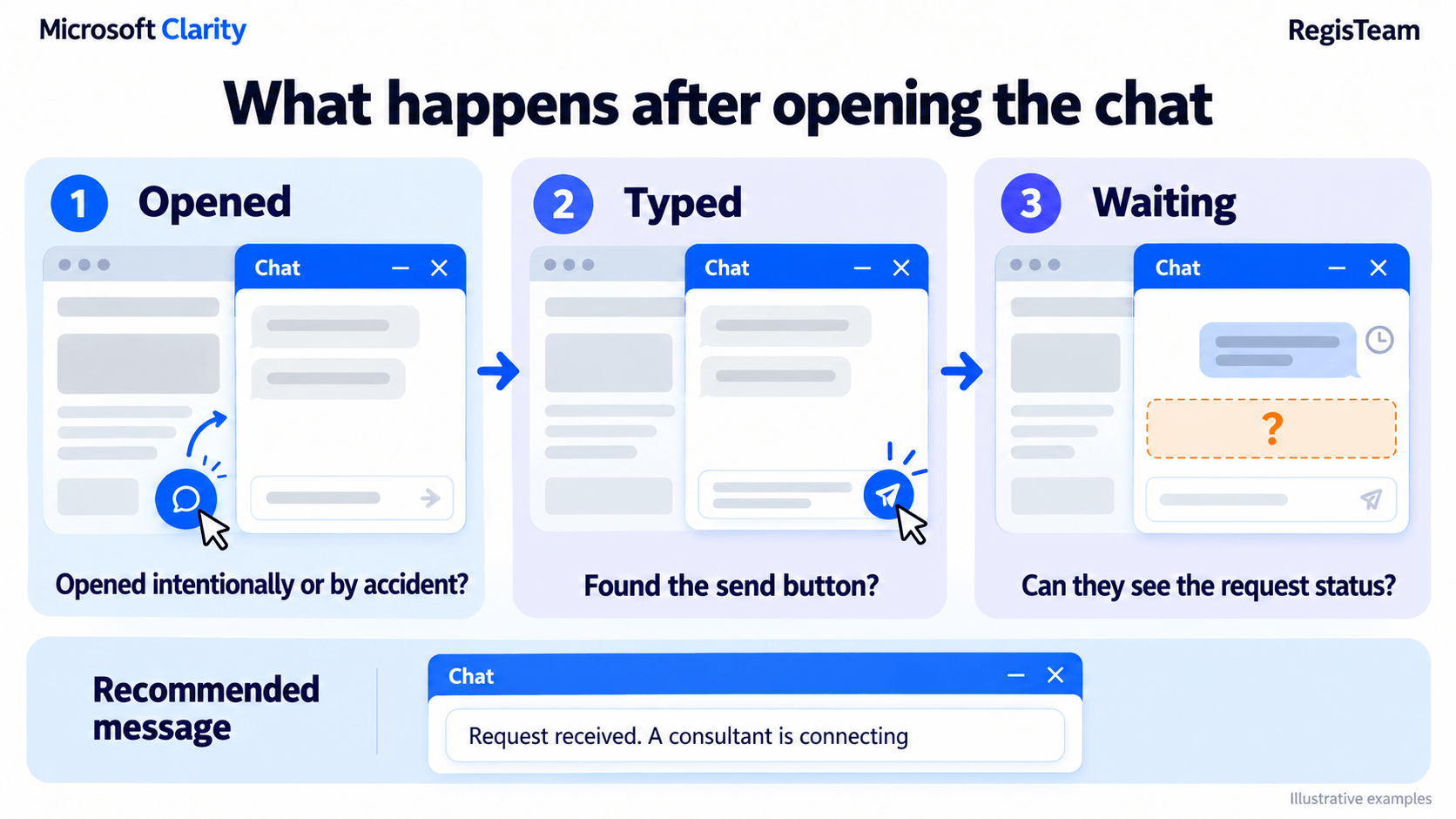
– A support agent took approximately 3 minutes to respond, and during that time, the customer had no indication that their message had been received.
– After opening the chat, it wasn’t clear how to send a message because the send button was difficult to spot.
– An automatic pop-up message caused users to open the chat accidentally.
– The brand name in the chat window was cut off, making it look like a technical glitch.
Problem:
The customer sent a message but didn’t receive a timely response and left the website.
Recommendation:
Display an automatic reply immediately after the first message, such as “We’ve received your message. A support agent will be with you shortly.” Make the send button easy to find. Compare the number of chat openings with the number of actual conversations. If significantly more users open the chat than start a conversation, consider removing the automatic pop-up or making it less intrusive. Outside business hours, consider using an AI chatbot to answer common questions about products, shipping, and payment options.
Clarity Scroll Heatmaps: Do Visitors See Important Sales-Related Sections?
A section may be present on a page but still fail to serve its purpose: visitors either don’t see it or it displays irrelevant content.
Here’s what we found in the session recordings:
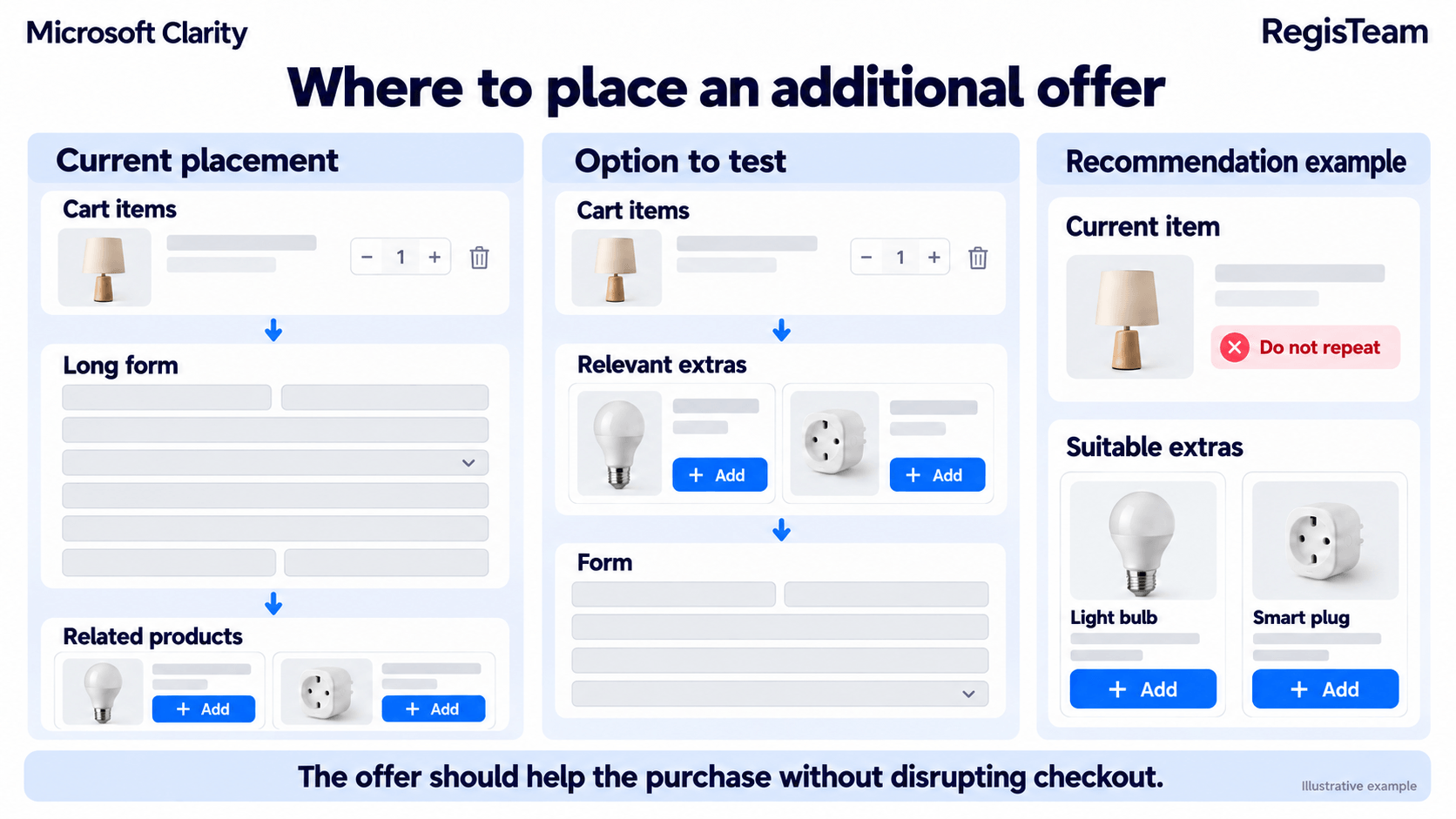
– In the shopping cart, related products were placed at the very bottom, below the checkout form, where few customers scrolled.
– The “Similar Products” section displayed only one item — the same product the customer was already viewing.
– Bulk discounts, which customers were interested in, were mentioned only on individual product pages, not in the product catalog.
– On the hosting provider’s website, call-to-action (CTA) buttons attracted less attention than the logo and cookie consent banner.
Problem:
Sections designed to increase average order value and conversions go unnoticed by customers.
Recommendation:
Move related products above the checkout form, closer to the cart items. Display 4–6 relevant alternatives without including the product currently being viewed. Highlight special offers and discounts directly in the product catalog, and make call-to-action buttons more visually prominent. Measure the results not just by clicks, but by the number of related products added to carts and completed orders.
Microsoft Clarity Heatmaps: How to Prioritize Website Improvements
Website heatmaps show where visitors click most often. This data helps you understand which sections get the most interaction and what should be reviewed first.
Here’s what we found in the session recordings:
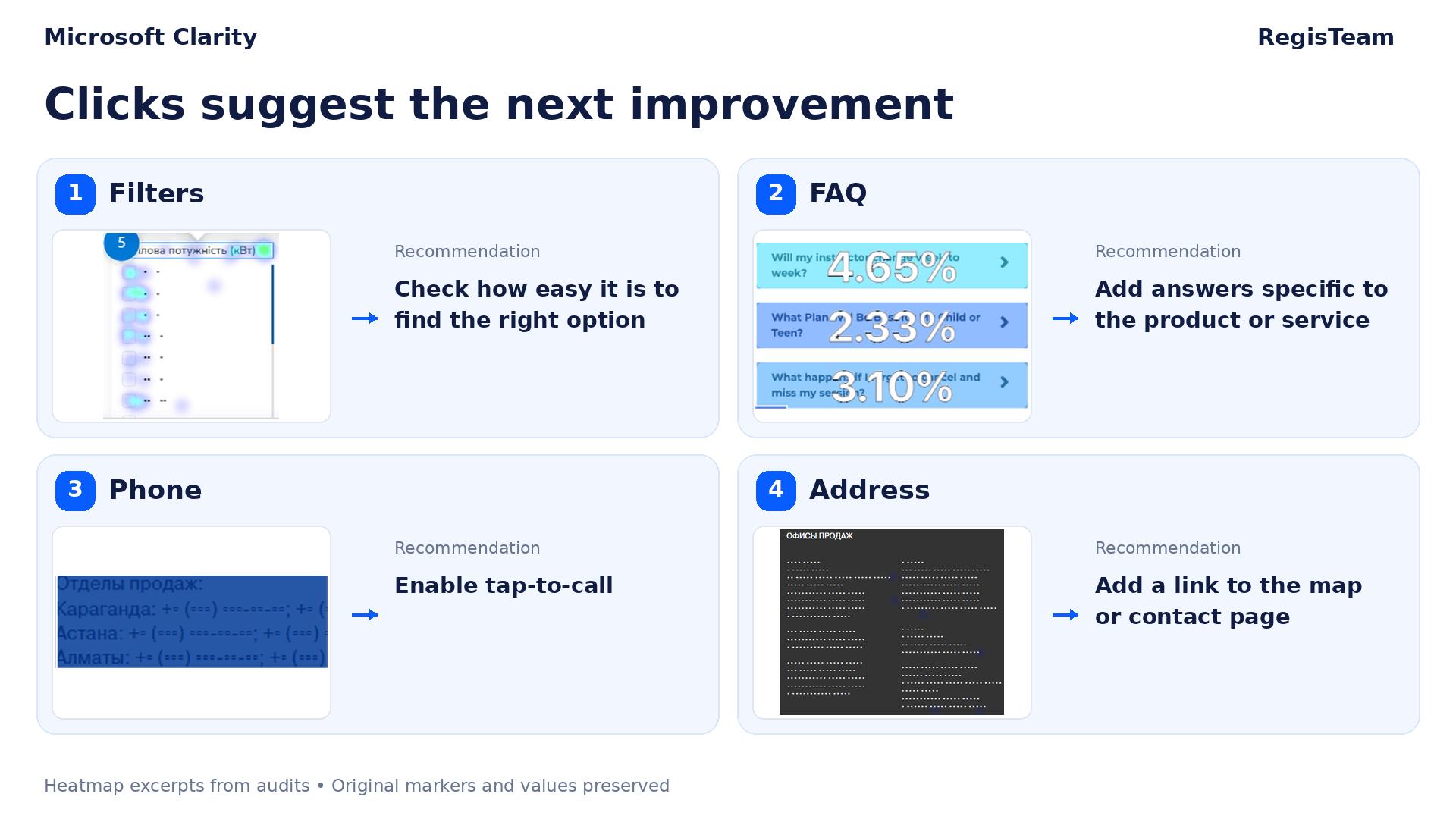
– Catalog filters were among the most frequently used elements, but the results reloaded every time a user selected a filter option.
– Visitors frequently opened the FAQ section, but the answers were too generic.
– Users clicked on phone numbers and addresses, even though they weren’t clickable.
– One menu category attracted the most attention, while the homepage featured products from a different category.
– Some products in the catalog received significantly more clicks than others.
Recommendation:
Test displaying filter results only after users have selected all their preferred options, and set up filter interaction tracking in Google Analytics. Add specific, relevant answers to FAQs for individual products or services. Make phone numbers clickable to call and addresses link directly to maps. Feature the most popular categories on the homepage and highlight best-selling products with a “Bestseller” badge.
How Do Microsoft Clarity Audit Findings Turn Into Website Improvements?
A Clarity session recording provides evidence, not an actionable task. To help developers fix the issues we identify, we document each finding using a consistent structure:
– Problem — a clear, simple explanation of what went wrong.
– Evidence — a link to the session recording and the relevant timestamp.
– Conditions — the device, browser, and page where the issue occurred.
– Recommendation — what needs to be changed and how the element should work after the fix.
– Verification — how to confirm that the issue has been resolved.
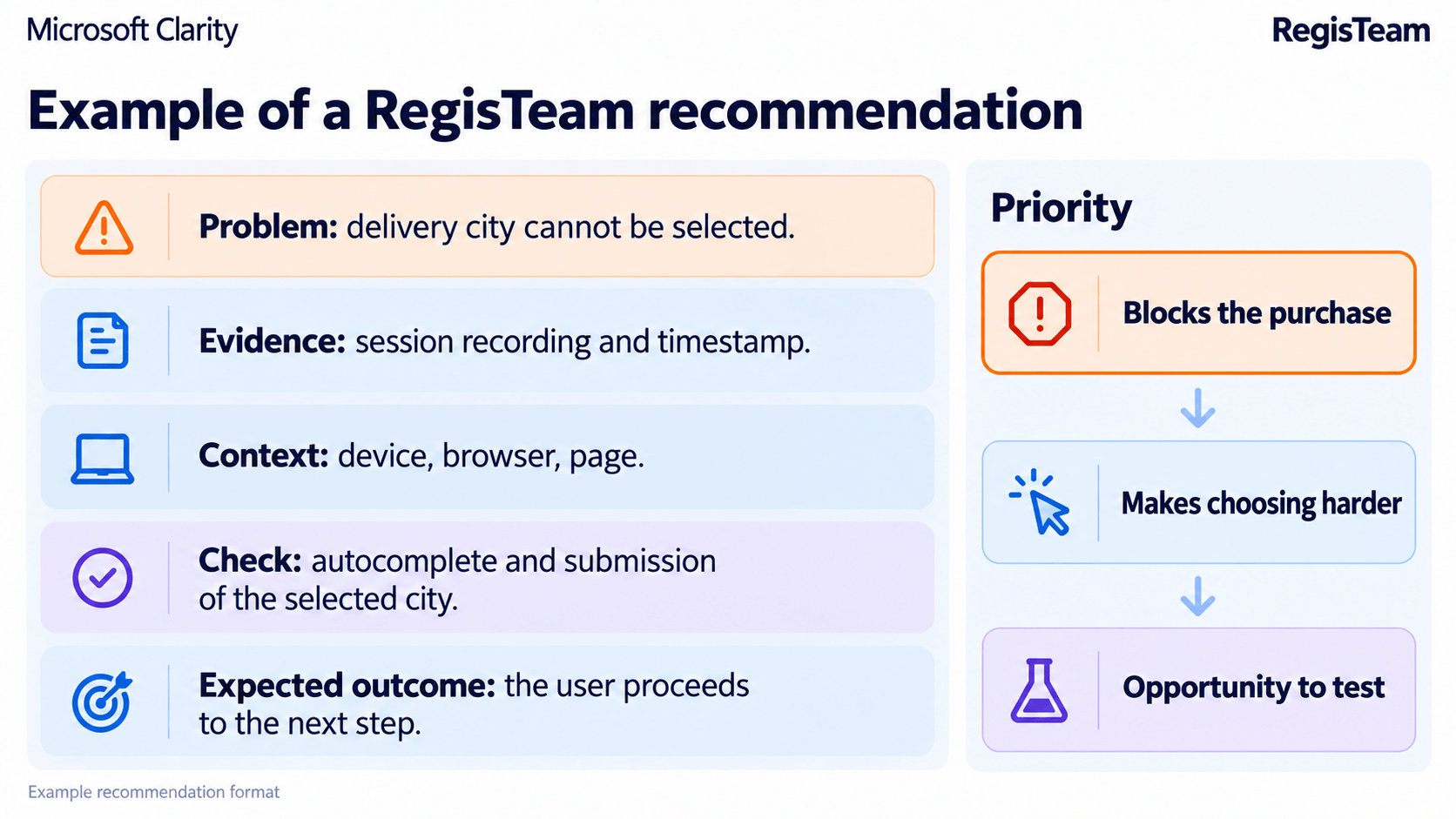
We assign a priority to each issue we identify: blocks a purchase (fix immediately), makes it harder to choose a product (improve usability), or presents a testing opportunity (test a hypothesis).
Example of an Audit Task: Check whether Clarity starts tracking before a visitor accepts cookies. Open the website in incognito mode, look for a clarity.ms/tag/ request in DevTools → Network, and check for _clck and _clsk cookies under DevTools → Application → Cookies. If these appear before the visitor clicks “Accept,” the cookie consent banner isn’t properly controlling Clarity.
After implementing the fixes, we review the same user journeys in new session recordings and compare inquiry and purchase data with analytics reports. The absence of the issue confirms that the technical fix worked, while its impact on sales is measured separately.
What Does Your Business Gain from a Microsoft Clarity Audit?
Key findings from our audits:
– The most costly issues often occur in the shopping cart and checkout process. In analytics reports, they may look like ordinary drop-offs, but session recordings reveal the specific reasons behind them.
– All five websites we audited needed mobile usability improvements, even when the main user journeys worked properly on desktop.
– Customers often struggle to find enough information on product pages, including images, specifications, answers to common questions, and reviews. Dead clicks and session recordings helped us identify these gaps.
– Live chat and sales-focused website sections can help generate more sales when they’re optimized around actual user behavior.
The result of a Microsoft Clarity audit is a prioritized list of actionable improvements: what needs to be fixed urgently, what should be optimized, and which hypotheses are worth testing.
The RegisTeam SEO team will analyze user behavior on your website using Microsoft Clarity. We’ll set up the tool, review session recordings and heatmaps, identify where your website may be losing potential orders, and prepare clear, evidence-backed tasks for your developers.
Request a Microsoft Clarity Audit!